
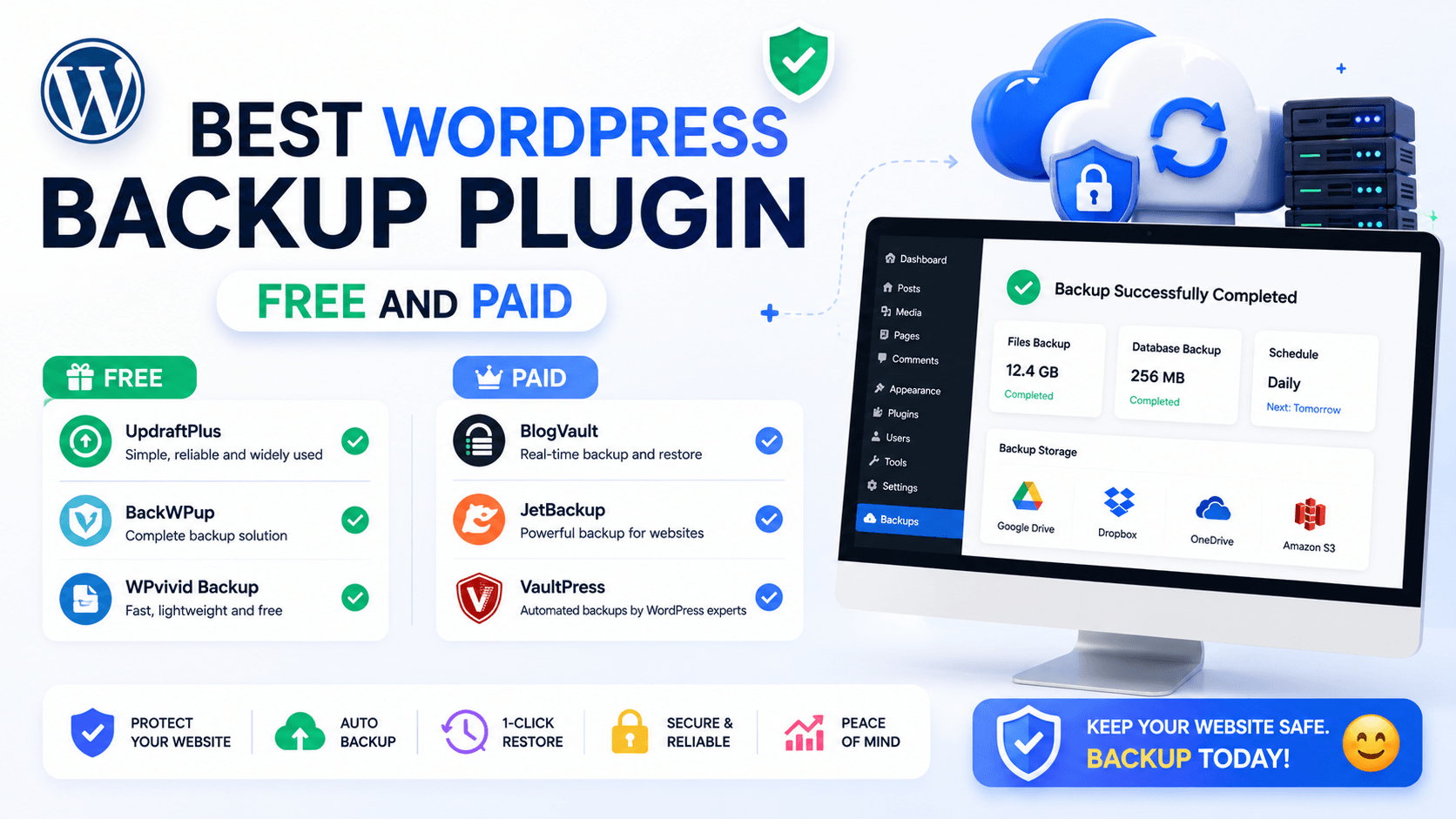
No matter how carefully you manage your WordPress site, data loss is never truly off the table. A single rogue plugin update, a hacked server, a bad hosting migration, or a simple human error can wipe out months or years of hard work in seconds. That’s why in this blog you will get an idea about the best or press backup plugin idea that is suitable for your website.
WordPress does not include any built-in backup system. That means the responsibility of protecting your website falls entirely on you. The good news: there are outstanding free and premium backup plugins for WordPress that can automate the entire process, store your data in the cloud, and restore your site with a single click when things go wrong.
In this blog guide, we have researched and compared the best WordPress backup plugins for 2026, covering everything from free options to advanced cloud-based backup solutions for large businesses and agencies. Each plugin is evaluated on features, ease of use, pricing, cloud storage support, and restore reliability —so you can make the right decision for your WordPress website.
Why Do You Need a WordPress Backup Plugin?
Before diving into the list, it is worth understanding why backups matter so much. According to various security reports, approximately 30,000 websites are hacked every single day. Beyond hacking, sites are frequently damaged by:
- Plugin or theme conflicts after updates
- Accidental file or database deletions
- Server crashes or hosting failures
- Ransomware attacks
- Human errors during development
Without a backup, recovering from any of these scenarios can be costly, time-consuming, or flat-out impossible. A dedicated WordPress backup and restore plugin ensures you always have a recent, clean copy of your site ready to deploy at a moment’s notice.
What to Look for in a WordPress Backup Plugin
Not all backup plugins are created equal, some are free and some are paid . Before you choose one, consider these key factors:
- Automated Scheduling — Can backups run automatically on a daily, weekly, or custom schedule?
- Cloud Storage Support — Does it support off-site storage like Google Drive, Dropbox, or Amazon S3?
- One-Click Restore — How fast and reliable is the restore process when you actually need it?
- Incremental Backups — Does it only back up what has changed, saving server resources and storage?
- File + Database Coverage — Does it back up both your files and your database?
- Site Migration — Can it help you move your site to a new host or domain?
- Free vs. Premium Limits — What does the free version actually offer, and what requires an upgrade?
The 9 Best WordPress Backup Plugins in 2025
1. UpdraftPlus — Best Overall WordPress Backup Plugin
UpdraftPlus

Pros :
- Free version is very feature-rich
- Supports multiple cloud storage platforms
- Easy one-click restore system
- Trusted by millions of WordPress users
- Flexible backup scheduling options
Cons :
- Incremental backups require premium version
- Full backups can slow shared hosting
- Cloud authentication may expire unexpectedly
- Migration tools limited in free version
- Interface may confuse absolute beginners
Type: Free + Premium | Best For: Bloggers, small businesses, agencies
UpdraftPlus is the most popular WordPress backup plugin in the world, with over 3 million active installations and a consistent 5-star rating on WordPress.org. It has been around since 2011 and is trusted across millions of websites — from personal blogs to large WooCommerce stores.
The free version alone is one of the most capable in its class. You can schedule automatic backups of your files and database, choose from multiple remote storage destinations including Google Drive, Dropbox, and Amazon S3, and restore your site directly from the WordPress dashboard — all without paying a cent.
For users who need more, the premium version unlocks incremental backups, database encryption, multisite support, priority support, and a powerful migration tool that makes moving between hosts or domains much easier.
Free Version Limits: The free version supports one cloud storage location at a time, full backups only (no incremental), and does not include database encryption or multisite granular controls.
Key Features:
- Scheduled automatic backups (files + database separately)
- Supports Google Drive, Dropbox, Amazon S3, OneDrive, Rackspace, FTP, and more
- One-click restore from within WordPress admin
- Backup before plugin/theme updates (Premium)
- Incremental backups to reduce server load (Premium)
- Database encryption for security (Premium)
- Multisite and multi-network support (Premium)
- WP-CLI support for advanced users (Premium)
- Email backup reports after each backup run
- UpdraftCentral dashboard for managing multiple sites
Pricing:
- Free version: Available on WordPress.org
- Personal (2 sites): $70/year (renews at $42/year)
- Business (10 sites): $95/year
- Agency (35 sites): Available — check teamupdraft.com
- Individual premium add-ons also available separately
UpdraftPlus Pros
Most popular and battle-tested plugin available — With over 3 million active installs and 14+ years of development, UpdraftPlus has proven its reliability across virtually every WordPress configuration imaginable.
Generous free version — Unlike many competitors, the free version of UpdraftPlus is genuinely useful. It supports cloud storage, scheduled backups, and one-click restores without requiring any payment.
Wide cloud storage compatibility — Supports more remote storage destinations than almost any other plugin, including Google Drive, Dropbox, Amazon S3, OneDrive, Rackspace, FTP/SFTP, and even email delivery.
Granular backup control — You can back up files and databases on separate schedules and restore individual components (just themes, just plugins, or just the database) without overwriting your entire site.
Solid restore process — Restoring from a backup is fast and intuitive directly from the WordPress admin dashboard, typically completing within minutes for most sites.
Email notifications for backup status — After every backup (successful or failed), UpdraftPlus sends a detailed email report so you always know the health of your backup system.
UpdraftPlus Cons
Incremental backups require a paid upgrade — The free version only performs full backups every time, which can be slow and resource-heavy for large sites. Incremental backups that only save changed files are a premium feature.
Cloud authentication can expire silently — Connecting UpdraftPlus to Google Drive or Dropbox requires manual OAuth setup, and authentication tokens can expire without warning — meaning your scheduled backups may silently stop running.
Migration is not smooth in the free version — Site migration is technically possible for free, but it is a manual, multi-step process. The streamlined migration tool is a premium feature, which can frustrate users who expect easy portability.
Full backups can slow down shared hosting servers — On budget shared hosting, running a full backup can temporarily strain resources and slow down your site for visitors during that window.
Complex interface for absolute beginners — While generally user-friendly, the settings panel can feel overwhelming for users with no WordPress experience, especially when setting up cloud storage authentication for the first time.
2. Duplicator — Best for Backup + Site Migration
Duplicator

Pros :
- Excellent for website migration
- No free backup size limit
- Restore works without WordPress access
- Powerful disaster recovery features
- High user ratings and reliability
Cons :
- Automatic backups require Pro version
- Incremental backups are paid-only
- Restoration process can feel technical
- Interface is developer-focused
- Beginners may face learning curve
Type: Free + Premium | Best For: Developers, agencies, site migration
Duplicator has earned an outstanding 4.9-star rating and is trusted by over 1.5 million WordPress websites. While it started as a migration tool, it now offers complete backup, restore, and site cloning capabilities. Its two-file installation system (an archive plus an installer script) allows you to restore a site even when WordPress is completely offline or broken — a critical advantage over many plugin-based solutions.
The free version is exceptionally capable. Unlike All-in-One WP Migration, there is no artificial file size cap preventing you from backing up larger sites. You can back up, migrate, and restore WordPress sites including WooCommerce stores from within your dashboard, with support for multiple cloud storage destinations.
Free Version Limits: The free version lacks scheduled/automated backups (manual only), incremental backups, and some advanced cloud storage options like OneDrive and Cloudflare R2. Automated backup scheduling requires the Pro version.
Key Features:
- Full site backups including database, themes, plugins, and uploads
- Two-file installer system for restoring without WordPress access
- Disaster recovery points (like a save-game for your site)
- Drag-and-drop site migration
- Pre-backup site health scan
- Cloud storage: Amazon S3, Google Drive, Dropbox, FTP/SFTP (Pro adds OneDrive, Vultr, Cloudflare R2)
- Automated backup scheduling (Pro)
- Incremental backups (Pro)
- Multisite backup support
- WooCommerce-compatible backups
- One-click restore
Pricing:
- Free version: Available on WordPress.org and duplicator.com
- Starter (1 site): $49.50/year
- Plus (3 sites): $89.50/year
- Pro (15 sites): $149.50/year
- Elite (Unlimited sites): $299.50/year
Duplicator Pros
No file size limit on free backups — Unlike several competitors, the free version of Duplicator places no artificial cap on backup size, allowing you to back up large sites (confirmed up to 400GB in testing) without purchasing an upgrade.
Restores work even without a live WordPress installation — The two-file installer system means you can restore a completely broken or hacked site to a blank server, making it a true disaster recovery tool.
Excellent for site migrations and cloning — Duplicator’s drag-and-drop import and server-to-server migration tools make it one of the most reliable tools for moving sites between hosts, domains, or from development to live environments.
Pre-backup site health scan — Before every backup, Duplicator checks your site for potential issues, catching problems before they cause backup failures. This is a thoughtful feature most other plugins skip entirely.
Disaster Recovery Points — You can designate specific backups as recovery points, enabling one-click rollback to a known-good state even if you are locked out of the WordPress dashboard.
Outstanding 4.9-star user rating — Consistently rated higher than most competitors in user satisfaction, reflecting a reliable restore success rate and excellent documentation.
Duplicator Cons
Automated scheduling requires Pro — The free version only supports manual backups. If you want your site backed up automatically on a schedule, you must upgrade to a paid plan.
Incremental backups are a paid feature — Like UpdraftPlus, incremental backups are reserved for premium users. Free users perform full backups each time, which consumes more server resources.
Steeper learning curve for restoration — The two-file restore method, while powerful, can be confusing for non-technical users who have never worked with PHP installer scripts or accessed their server via FTP.
Interface is developer-oriented — Duplicator’s interface, while improving, still tends to appeal more to developers and technical users than absolute beginners.
3. BlogVault — Best for Enterprise, Agencies, and High-Traffic Sites
BlogVault

Pros :
- Backups run completely off-server
- Real-time WooCommerce backup support
- Extremely reliable restore success rate
- Built-in staging environment included
- Enterprise-grade security and encryption
Cons :
- No permanent free plan available
- Much more expensive than competitors
- Backups stored only on BlogVault servers
- Advanced features may feel unnecessary
- Large migrations can take longer
Type: Premium Only (7-day free trial) | Best For: Agencies, enterprises, WooCommerce stores
BlogVault is a cloud-based WordPress backup solution that takes a fundamentally different approach than traditional plugins. Rather than running backup processes on your server, BlogVault offloads the entire operation to its own dedicated infrastructure. This means your hosting server is never burdened, your site performance is never affected, and backups succeed even for extremely large sites (up to 500GB).
Trusted by over 450,000 websites, BlogVault claims a 100% restore success rate — and that claim is credible, because it controls the entire backup and restore pipeline from start to finish. It even includes an emergency connector that can restore your site when WordPress is completely inaccessible.
Beyond backups, BlogVault bundles built-in staging environments, zero-downtime migrations, visual regression testing, malware scanning, and a centralized dashboard for managing multiple sites — making it a comprehensive reliability platform for professionals.
Free Version: BlogVault does not offer a permanent free plan, but provides a 7-day free trial with full features. A 14-day money-back guarantee is also available after purchase.
Key Features:
- Fully external backups — no server load whatsoever
- Daily incremental backups with real-time capability for WooCommerce
- 365-day backup archive history
- One-click restore — even when WordPress is down (emergency connector)
- Built-in staging environment at no extra cost
- Zero-downtime site migration
- Visual regression testing before and after changes
- Malware scanning and one-click removal
- Multisite backup, restore, and migration support
- Centralized dashboard for managing multiple WordPress sites
- White-label reports for agencies
- GDPR-compliant, 256-bit encrypted storage on ISO 27001 certified servers
Pricing:
- Plus (1 site): $149/year
- Business (5 sites): $199/year (check blogvault.net for current pricing)
- Agency (25 sites): $499/year
- A 7-day free trial is available; 14-day refund policy applies
BlogVault Pros
Zero impact on server performance — Because backups run entirely on BlogVault’s own servers, your hosting resources are never touched. This is a significant advantage for high-traffic sites where any performance degradation matters.
100% restore success rate, even when WordPress is down — The emergency connector restores your site even when your WordPress installation is completely broken, hacked, or inaccessible. This level of reliability is extremely rare among backup tools.
Built-in staging environment included — Most backup plugins charge separately for staging features or require third-party tools. BlogVault includes a one-click staging environment in all plans, allowing you to safely test updates before pushing them live.
365-day backup history — You can roll back your site to any point within the past year, which is far more generous than most plugins that offer 30 to 90 days of history.
Real-time WooCommerce backups — For eCommerce sites where every transaction matters, BlogVault can capture changes in real time, ensuring no order, customer, or inventory data is ever lost.
Enterprise-grade security — Backups are encrypted with 256-bit AES encryption and stored on ISO 27001 certified servers within the EU. This level of compliance is critical for businesses handling sensitive customer data.
BlogVault Cons
No permanent free plan — BlogVault does not offer a free tier for long-term use. You must either use the 7-day trial or commit to a paid plan, which makes it inaccessible for budget-conscious bloggers or small hobby sites.
Expensive compared to most alternatives — Starting at $149/year for a single site, BlogVault costs more than twice the price of UpdraftPlus Premium. For solo bloggers or site owners with simple needs, this is difficult to justify.
No option for local backup storage — Backups are stored exclusively on BlogVault’s servers. You cannot redirect backups to your own Google Drive, Dropbox, or local storage, which may concern users who want full control over their data location.
Migration takes longer for very large sites — While migration is generally smooth, extremely large sites (50GB+) may experience longer migration windows than smaller sites.
Higher-tier features can feel like overkill for simple blogs — Features like visual regression testing, white-label reports, and malware scanning are powerful but unnecessary for users who simply want a reliable backup without extras.
4. Jetpack VaultPress Backup — Best for Real-Time Cloud-Based Backup
Jetpack

Pros :
- True real-time backup protection
- Managed by Automattic
- External restore dashboard available
- No cloud storage setup required
- Backups do not affect server performance
Cons :
- Useful features locked behind paywall
- Requires connection with Jetpack ecosystem
- Subscription pricing gets expensive over time
- Entry plans have storage limitations
- Free plan is extremely limited
Type: Free plan available (very limited); Paid from $4.95/month | Best For: Sites needing real-time, hands-off backup with Automattic’s ecosystem
Jetpack VaultPress Backup is developed by Automattic, the company behind WordPress.com itself. That heritage gives it a level of credibility and reliability few competitors can match. The plugin creates automatic backups that run on Jetpack’s own servers rather than yours, meaning your site stays fast and fully operational during every backup cycle.
What truly sets VaultPress apart is its real-time backup capability. Every change you make to your site — a published post, a new WooCommerce order, a plugin update — is captured almost instantly. Combined with an independent restoration dashboard that works even when your WordPress admin is inaccessible, it is one of the most resilient cloud-based backup solutions available.
Free Version: A basic free plugin is available, but meaningful backup functionality (real-time backups, cloud storage, restore tools) requires a paid plan. The free version is extremely limited for backup purposes.
Key Features:
- Real-time backups running on Jetpack’s own servers
- Independent restore dashboard (works even if your site is down)
- Real-time WooCommerce backup (orders, customers, products)
- Activity log showing every change made to your site
- One-click restore of full site or individual posts/pages
- Malware scanning available on higher-tier plans
- Seamless integration with the broader Jetpack ecosystem
- No setup of cloud storage accounts required
Pricing:
- Free plan: Very limited for backup purposes
- Jetpack Backup (Daily): ~$4.95/month billed annually ($59.40/year)
- Jetpack Backup (Real-time): ~$9.95/month billed annually ($119.40/year)
- Note: Backup is also included in some Jetpack bundles — check jetpack.com for current pricing
Jetpack VaultPress Pros
True real-time backup for every change — No other plugin comes close to the real-time granularity VaultPress offers. Every published post, updated setting, and completed WooCommerce order is captured almost the instant it happens.
Backup runs off your server entirely — Like BlogVault, VaultPress processes backups on Jetpack’s infrastructure, completely eliminating any performance impact on your own hosting environment.
Independent restore dashboard — You can restore your site even when your WordPress admin is broken or inaccessible, through Jetpack’s external dashboard — a true lifesaver in worst-case scenarios.
Developed by Automattic — WordPress.com’s parent company — The pedigree is unmatched in the WordPress ecosystem. Automattic’s infrastructure and security standards are enterprise-grade.
Zero configuration for cloud storage — You never need to set up API credentials or connect to Dropbox or Google Drive. Storage is handled automatically by Jetpack, removing a common point of failure for less technical users.
Jetpack VaultPress Cons
Meaningful backup features are behind a paywall — The free version of the Jetpack plugin is essentially non-functional for reliable backups. Real-time protection, restore tools, and cloud storage all require a paid subscription.
Ties you to the Jetpack ecosystem — Installing Jetpack means connecting your site to WordPress.com. For site owners who prefer a lightweight, standalone backup solution, this integration can feel intrusive and adds plugin overhead.
Recurring subscription cost — Unlike one-time or annual plugin licenses, VaultPress operates on a monthly or annual subscription, which adds up significantly over time compared to a standalone paid plugin.
Limited storage on entry-level plans — Depending on the plan, storage limits may be insufficient for larger sites with extensive media libraries, requiring an upgrade to a higher tier.
Read More : Best Free SEO Plugins For WordPres
Read More : Best AI Blog Automation WordPress Plugins
5. All-in-One WP Migration and Backup — Easiest for Beginners and Migrations
All-in-One WP Migration

Pros :
- Very beginner-friendly interface
- Simple drag-and-drop migration process
- Automatically fixes database serialization
- Works with most hosting providers
- Single-file website export system
Cons :
- Free import limit only 512MB
- Cloud storage extensions cost extra
- No scheduled backups in free version
- Cannot restore partial backups
- Large imports may cause timeout issues
Type: Free + Premium extensions | Best For: Beginners, one-time migrations, simple sites
All-in-One WP Migration has over 5 million active installations, making it one of the most widely used migration and backup tools in the WordPress ecosystem. Its popularity stems from one thing above all else: simplicity. There are no complex settings, no FTP credentials to configure, no database exports to manage. You export your site into a single .wpress file, drag it into the import window on your new site, and you are done.
The plugin automatically handles serialized database strings, URL replacements, and file transfers in a way that is transparent to users — removing almost all technical risk from the migration process.
However, the free version has a significant limitation: it only allows importing files up to 512MB. For many modern sites with media libraries, this threshold is reached very quickly, forcing an upgrade to a premium extension.
Free Version Limits: The free version restricts imports to 512MB. Cloud storage destinations (Google Drive, Dropbox, Dropbox Business, OneDrive, etc.) require purchasing separate premium extensions. Automated scheduled backups are also not available in the free version.
Key Features:
- Single-file .wpress export containing your entire WordPress site
- Drag-and-drop import — no technical knowledge required
- Automatic URL serialization fix during migrations
- Selective export (exclude spam, revisions, inactive plugins)
- Chunked upload system to bypass hosting upload limits
- Support for 70+ languages
- Compatible with virtually all WordPress hosting environments
- Multi-language admin interface
Pricing:
- Core plugin: Free on WordPress.org
- Unlimited Extension (removes size limit): $69 one-time fee (personal use)
- Storage extensions (Google Drive, Dropbox, OneDrive, etc.): ~$99/year each
- Multisite Extension: ~$319/year
- Note: Costs can escalate significantly if you need multiple cloud destinations
All-in-One WP Migration Pros
Easiest migration experience in the WordPress ecosystem — The drag-and-drop interface is genuinely the simplest way to move a WordPress site. Even users with zero technical knowledge can complete a migration confidently without touching phpMyAdmin or FTP.
Automatic handling of database serialization — When migrating sites, broken serialized strings are a common cause of site failures. All-in-One WP Migration handles this automatically and transparently, dramatically reducing the risk of database corruption.
5+ million active installations and highly rated — With a 4.6-star average rating and millions of users, the plugin has been battle-tested across an enormous variety of hosting environments, themes, and plugin combinations.
Works with virtually every hosting provider — The chunked upload system breaks large files into 512KB segments, allowing the plugin to bypass restrictive server upload limits without any manual server configuration.
Selective export reduces file size — You can exclude spam comments, post revisions, inactive plugins, and specific media folders from your export, helping keep the archive size manageable and under free-version limits.
All-in-One WP Migration Cons
512MB free import limit is very restrictive — This is the plugin’s biggest weakness. A 512MB cap means most sites with even modest image libraries cannot use the free version for importing backups, effectively forcing a paid upgrade.
Extension-based pricing model adds up quickly — The base unlimited extension is $69, but each cloud storage provider costs an additional $99/year. Needing multiple cloud destinations can make All-in-One WP Migration more expensive than bundled alternatives like Duplicator Pro.
No automated scheduled backups in the free version — The free plugin does not run backups automatically on a schedule. You must manually trigger each backup, which is impractical for ongoing site protection.
All-or-nothing backup approach — The plugin packages your entire site into one monolithic file. You cannot restore just your database, just your themes, or just a specific plugin — it is a complete site restore or nothing, which is limiting for surgical repairs.
Very large sites can experience timeouts during import — Sites with archives larger than 1GB may encounter server-side PHP timeout issues during import, requiring manual server configuration adjustments that non-technical users cannot easily perform.
6. WPvivid — Best Free Plugin with Premium-Level Features
WPvivid

Pros :
- Generous free cloud backup features
- Supports many free cloud destinations
- Includes built-in staging functionality
- Easy migration and restore process
- Regular updates and active development
Cons :
- Free version limited to monthly backups
- Incremental backups require Pro version
- Staging push-to-live is paid
- Backups can affect server performance
- Advanced security features are premium-only
Type: Free + Premium | Best For: Users wanting advanced features without the premium price tag
WPvivid is perhaps the most underrated free WordPress backup plugin available today. Its free version includes features that many paid plugins charge for: automated scheduling, multiple cloud storage destinations, site migration tools, staging environments, and granular backup options — all without spending a penny.
If you need cloud-based backup solutions without a budget, WPvivid is one of the first places you should look. It supports Google Drive, Dropbox, Amazon S3, Microsoft OneDrive, DigitalOcean Spaces, and FTP — all in the free version.
Free Version Limits: The free version of WPvivid supports monthly scheduled backups to one cloud destination at a time. Multiple simultaneous cloud destinations, incremental backups, data encryption, and the ability to push your staging site to live require upgrading to the Pro version.
Key Features:
- Automated backup scheduling (monthly free; custom intervals on Pro)
- Cloud storage: Google Drive, Dropbox, Amazon S3, OneDrive, DigitalOcean, FTP (all free)
- One-click site migration
- Built-in staging environment (push to live requires Pro)
- Incremental backups (Pro)
- Data encryption (Pro)
- Multisite support (Pro)
- WooCommerce-compatible
- Easy restore from within WordPress admin
Pricing:
- Free version: Available on WordPress.org
- Pro (1 site): Starts from approximately $49/year (check wordpress.org for current pricing)
- Lifetime license options available
WPvivid Pros
Incredibly generous free version — WPvivid’s free tier includes automated cloud backup scheduling, multiple cloud storage providers (Google Drive, Dropbox, S3, OneDrive, and more), and migration tools that most plugins only offer at premium pricing.
Multiple cloud destinations supported for free — Connecting to popular cloud storage services like Google Drive or Dropbox does not require a paid upgrade, making WPvivid one of the best free WordPress backup plugins with true cloud-based backup solutions.
Built-in staging environment — You can create a staging copy of your site directly from the WPvivid dashboard without needing a separate staging plugin or hosting plan. This is a premium feature in most competing tools.
Easy migration process — Moving your site to a new host or domain is straightforward, with a user-friendly migration wizard that handles database URL replacement automatically.
Regular updates and active development — WPvivid is actively maintained, with consistent updates ensuring compatibility with the latest WordPress versions and hosting environments.
WPvivid Cons
Free version limits backup frequency to monthly — Monthly scheduled backups are far too infrequent for active websites. If your site publishes content daily or processes orders, you need at minimum weekly or daily backups — which requires a Pro upgrade.
Pushing staging site to live requires Pro — You can create a staging site for free, but actually merging your staging changes back to the live site is locked behind the paid plan, which undermines the value of the free staging feature.
Backups stored on your own server can slow performance — Unlike cloud-native solutions like BlogVault or VaultPress, WPvivid runs backups on your hosting server. On shared hosting, this can temporarily reduce site performance during backup operations.
Incremental backups are Pro-only — The free version performs full backups every time, which is resource-heavy for large sites. Incremental backups that only capture changed files require the paid upgrade.
7. Solid Backups NextGen (formerly BackupBuddy) — Best Premium Cloud-Based Solution
Solid Backups
Pros :
- Built-in cloud storage included
- Smart incremental backup system
- Flexible automated scheduling options
- Off-site backups improve performance
- Trusted long-term WordPress solution
Cons :
- No free version available
- Higher pricing than many competitors
- Tied closely to Liquid Web ecosystem
- Premium-only access may deter beginners
- Limited budget-friendly options
Type: Premium Only | Best For: Single-site owners and small businesses wanting all-in-one cloud backup
Solid Backups NextGen, developed by SolidWP (formerly iThemes) and now under the Liquid Web brand, is a long-established premium WordPress backup plugin that has recently evolved into a cloud-first solution. Like BlogVault and VaultPress, it offloads backup processing to its own servers rather than your hosting environment, eliminating performance impacts on your live site.
What makes Solid Backups unique is Stash — its built-in cloud storage service included with every plan. Unlike most backup plugins that require you to connect your own Google Drive or Dropbox account, Solid Backups provides managed cloud storage right out of the box. No API keys. No authentication expiry. No third-party accounts to manage.
Free Version: There is no permanent free plan for Solid Backups NextGen. A free trial period is available before committing to a paid subscription.
Key Features:
- Backup runs off your server (no hosting impact)
- Stash — built-in managed cloud storage included in all plans
- Smart incremental backup system (only changed files after first backup)
- Automated backup scheduling: hourly, twice daily, daily, or custom
- One-click restore with granular file recovery
- Disaster recovery and site migration tools
- Real-time malware scanning
- BackupBuddy importer for restoring to clean servers
Pricing:
- Starts at approximately $8.25/month for 1 site (billed annually, ~$99/year)
- Check liquidweb.com/solid-backups for current plans and pricing
Solid Backups NextGen Pros
Cloud storage included — no third-party accounts needed — Stash eliminates the most common point of failure in self-configured backup plugins. You never need to worry about Google Drive tokens expiring or Dropbox disconnecting silently.
Incremental backups save resources and storage — After the initial full backup, Solid Backups only saves files that have changed. This dramatically reduces storage usage and server load for frequent backup schedules.
Flexible automated scheduling — You can schedule backups hourly, twice daily, or daily — a level of granularity that suits high-traffic and eCommerce sites that cannot afford to lose more than a few hours of activity.
Backup processing happens off-site — Like BlogVault and VaultPress, the heavy lifting happens on Solid Backups’ servers, keeping your hosting performance unaffected during backup windows.
Long track record and active development — BackupBuddy (its predecessor) has been trusted in the WordPress community for many years. The Solid Backups NextGen evolution brings modern cloud-first architecture to that proven reliability.
Solid Backups NextGen Cons
No permanent free plan — Solid Backups NextGen is a fully paid product with no free tier. Users on a tight budget will need to look elsewhere for a no-cost solution.
Higher cost than standalone plugins — At approximately $99/year, Solid Backups costs more than UpdraftPlus for a single site, though the included Stash storage may offset the difference for users who would otherwise pay for cloud storage separately.
Tied to Liquid Web’s ecosystem — As a product now under the Liquid Web umbrella, some users may be cautious about long-term support direction and pricing stability compared to independent plugin developers.
8. BackWPup — Best Simple Free Backup Plugin
BackWPup

Pros :
- Free version supports cloud storage
- Lightweight and server-friendly plugin
- Flexible job-based backup scheduling
- Includes database optimization tools
- Supports WordPress multisite setups
Cons :
- No one-click restore for free users
- Interface feels outdated and confusing
- No incremental backup support
- Manual restoration requires technical skills
- Less beginner-friendly than competitors
Type: Free + Premium | Best For: Beginners wanting a lightweight, free backup solution
BackWPup is a straightforward, reliable free WordPress backup plugin with over 700,000 active installations and a solid 4.5-star rating. It is not the flashiest tool on this list, but it does exactly what it promises: it creates complete WordPress backups and pushes them to external destinations including Dropbox, Amazon S3, Google Drive, FTP, and email.
Where BackWPup stands out is its job-based architecture. Each backup is configured as a separate “job” that you can customize with its own schedule, storage destination, and content selection. This makes it easy to run database-only daily backups and full-site weekly backups simultaneously.
Free Version Limits: The free version of BackWPup does not include restore functionality within WordPress — you must manually download the backup and restore it via FTP. Advanced scheduling, priority support, and one-click restore require the premium version.
Key Features:
- Job-based backup scheduling (multiple simultaneous jobs)
- Backup to Dropbox, Amazon S3, Google Drive, FTP/SFTP, email, and more
- Database optimization and table repair as part of backup jobs
- Backup WordPress XML export files
- Support for WordPress Multisite
- Backup log and reporting
- One-click restore (Premium)
- Priority support (Premium)
Pricing:
- Free version: Available on WordPress.org
- Premium plans start at approximately $69/year (renews at ~$39/year)
BackWPup Pros
Completely free with solid cloud storage support — The free version supports major cloud destinations including Dropbox, Amazon S3, Google Drive, and FTP — making it one of the most capable free backup options for straightforward needs.
Job-based scheduling for multiple backup configurations — You can run several different backup jobs simultaneously with different schedules and destinations. For example: a database-only backup every day and a full-site backup every week.
Lightweight and efficient — BackWPup has a minimal footprint and runs efficiently on shared hosting without placing excessive load on your server during backup operations.
Includes database optimization — As part of a backup job, BackWPup can optimize and repair your WordPress database tables, combining two maintenance tasks into a single scheduled operation.
Multisite compatible — BackWPup supports WordPress Multisite networks in both the free and premium versions, which is useful for users managing multiple WordPress sites on one installation.
BackWPup Cons
No one-click restore in the free version — The most significant limitation: the free version of BackWPup does not restore your site from within WordPress. You must manually download the backup archive and restore files via FTP and phpMyAdmin, which is not beginner-friendly.
Interface is dated and less intuitive — BackWPup’s job-based configuration interface, while powerful, is less polished and more confusing than modern alternatives like UpdraftPlus or Duplicator, particularly for new users.
No incremental backups — BackWPup creates full backups every time a job runs. There is no incremental option even on the premium plan, which means larger sites consume more storage and server time with every backup.
9. WP Time Capsule — Best for Incremental Backup Specialists
WP Time Capsule

Pros :
- True incremental backup architecture
- Minimal impact on server performance
- Point-in-time restore capability
- Excellent for active websites
- Efficient cloud storage integration
Cons :
- Smaller community and documentation
- Free version has notable limitations
- Restore system may confuse beginners
- Some features require quick upgrades
- Less popular than major competitors
Type: Free + Paid | Best For: Sites wanting efficient incremental cloud backups with minimal server impact
WP Time Capsule takes a focused approach to WordPress backup: everything is incremental from the very first backup. Rather than creating a full site backup and then only backing up changes afterward, WP Time Capsule only ever transfers the files that have actually changed since the last backup. This makes it one of the most storage-efficient and server-friendly backup plugins available.
The plugin is designed around cloud storage integration, automatically pushing incremental backups to Dropbox, Amazon S3, Google Drive, or Backblaze B2. The restore process is equally efficient — you can restore to any specific point in time rather than just the most recent backup.
Free Version Limits: The free version supports a limited number of sites and may restrict some advanced scheduling and storage features. Check the plugin’s current listing on WordPress.org for the latest free tier details, as these may change.
Key Features:
- True incremental backups from day one (no heavy initial full backup)
- Automatic cloud push to Dropbox, Google Drive, Amazon S3, Backblaze B2
- Point-in-time restore — roll back to any specific date and time
- Staging site creation from any backup point
- WooCommerce-friendly
- Low server resource usage during backups
- Activity log showing every change captured
Pricing:
- Free version: Available on WordPress.org
- Paid plans available — check the plugin page for current pricing (starts from approximately $24/year for bloggers/developers)
WP Time Capsule Pros
True incremental-first architecture — WP Time Capsule is built from the ground up around incremental backups. Every backup captures only what has changed, making the process extremely fast and storage-efficient even for daily or more frequent schedules.
Point-in-time restore flexibility — Rather than restoring to a fixed “last backup,” you can roll back to any specific date and time within your backup history — giving you surgical control over what version of your site you recover.
Minimal server performance impact — Because only changed files are transferred, backup jobs complete very quickly and place minimal load on your hosting environment, even on shared servers with resource limitations.
Excellent for active, frequently-updated sites — Sites that publish content daily, run active WooCommerce stores, or update frequently benefit enormously from the incremental approach, since their backups are completed in seconds rather than minutes.
Staging from any backup point — You can spin up a staging site from any historical backup point, not just the most recent — a useful capability for testing rollbacks before committing to them on your live site.
WP Time Capsule Cons
Smaller user base and community — Compared to UpdraftPlus or Duplicator, WP Time Capsule has a smaller install base and fewer community tutorials, making troubleshooting harder for beginners when issues arise.
Free version limitations may require an upgrade quickly — The free plan’s restrictions around site count and scheduling may push active users toward a paid plan sooner than expected.
Restore process can be less straightforward — While point-in-time restore is powerful, it can be more complex to navigate than a simple “restore from backup” button, which may confuse users unfamiliar with version-based recovery concepts.
FAQ's
Yes, you do. Hosting-level backups are a great additional layer of protection, but they have real limitations. Most shared hosting providers keep backups for only 7 to 30 days, may not include all your files, and can take hours to restore during a support ticket process. With a dedicated WordPress backup and restore plugin, you control the backup frequency, destination, and restore process and you can restore your site yourself in minutes without waiting for hosting support.
A full backup captures a complete copy of your entire WordPress site, all files, databases, themes, plugins, and uploads every time it runs. An incremental backup only captures what has changed since the last backup. Incremental backups are faster, use less storage, and place far less load on your server, making them the preferred approach for sites that back up daily or more frequently. Plugins like BlogVault, VaultPress, Solid Backups, and WP Time Capsule offer true incremental backups. UpdraftPlus and Duplicator offer incremental backups on their premium plans.
A cloud-based backup solution stores your backup files on a remote server or cloud storage service such as Google Drive, Dropbox, Amazon S3, or a dedicated backup platform like BlogVault rather than on the same server as your WordPress site. This is critically important because if your hosting server crashes, gets hacked, or becomes corrupted, any backups stored on that same server are lost along with your site. Cloud-based solutions ensure your backups survive even a complete server failure.
For most users, UpdraftPlus is the best free WordPress backup plugin because it offers scheduled backups, multiple cloud storage destinations, and one-click restore all for free. WPvivid is a close second, offering even more cloud storage destinations in its free version. Duplicator is the best free option if your primary need is site migration or restoration from a completely broken server environment.
The right backup frequency depends on how often your site changes. General recommendations:
- Daily backups — for eCommerce stores, news sites, and any site that updates content or receives orders daily.
- Weekly backups — for regularly updated blogs or business sites with moderate content changes.
- Monthly backups — only appropriate for completely static sites that rarely change.
Always take a manual backup immediately before performing WordPress core updates, plugin updates, or theme changes.
It depends on the plugin. Duplicator uses a two-file installer system that restores your site without needing WordPress to be functional. BlogVault and Jetpack VaultPress both include independent external dashboards that bypass your WordPress admin for restoration. UpdraftPlus primarily requires WordPress access for restoration, though its premium version includes some additional recovery options. For maximum resilience, choose a plugin that can restore your site even without dashboard access.
Yes, for most users this is a safe and practical choice. Google Drive and Dropbox both use encryption in transit and at rest, and your backup files are only accessible to your authenticated account. For additional security, look for plugins that also encrypt the backup archive itself before uploading — UpdraftPlus Premium and BlogVault both offer database encryption. That said, for regulatory compliance (GDPR, HIPAA, etc.), you may need to verify where exactly your cloud storage provider physically stores your data.
Consider upgrading to a premium backup plugin if any of the following apply to your situation:
- You run an eCommerce store where losing even a few hours of orders is unacceptable → Real-time or incremental backups are essential (BlogVault, VaultPress).
- Your site is larger than 2–3GB → Full backups will strain server resources. Incremental backups (paid features in most plugins) become critical.
- You manage multiple client sites → Centralized dashboards and multisite support justify the investment (BlogVault, Duplicator Pro).
- You need guaranteed restore success → Premium plugins with independent restore tools (BlogVault, Solid Backups) significantly reduce restore failure risk.
- Your site is your business → The cost of one hour of downtime far exceeds the annual price of any premium backup plugin on this list.
Conclusion
Losing your WordPress website — whether to a hack, a bad update, or a server failure — is one of the most stressful experiences any site owner can face. The best way to ensure it never becomes a catastrophe is to have a reliable, automated backup strategy in place before anything goes wrong.
The good news is that the best WordPress backup plugins in 2025 make protection genuinely easy and affordable, regardless of your budget or technical level.
Here is a quick recap to guide your decision:
- Best overall backup plugin (free + paid): UpdraftPlus — reliable, flexible, and trusted by millions
- Best for backup + migration: Duplicator — powerful free version with no file size limits
- Best for agencies and enterprise: BlogVault — off-server backups, 100% restore success, built-in staging